
How to Load a Stiip GPX onto Garmin, Wahoo or OsmAnd
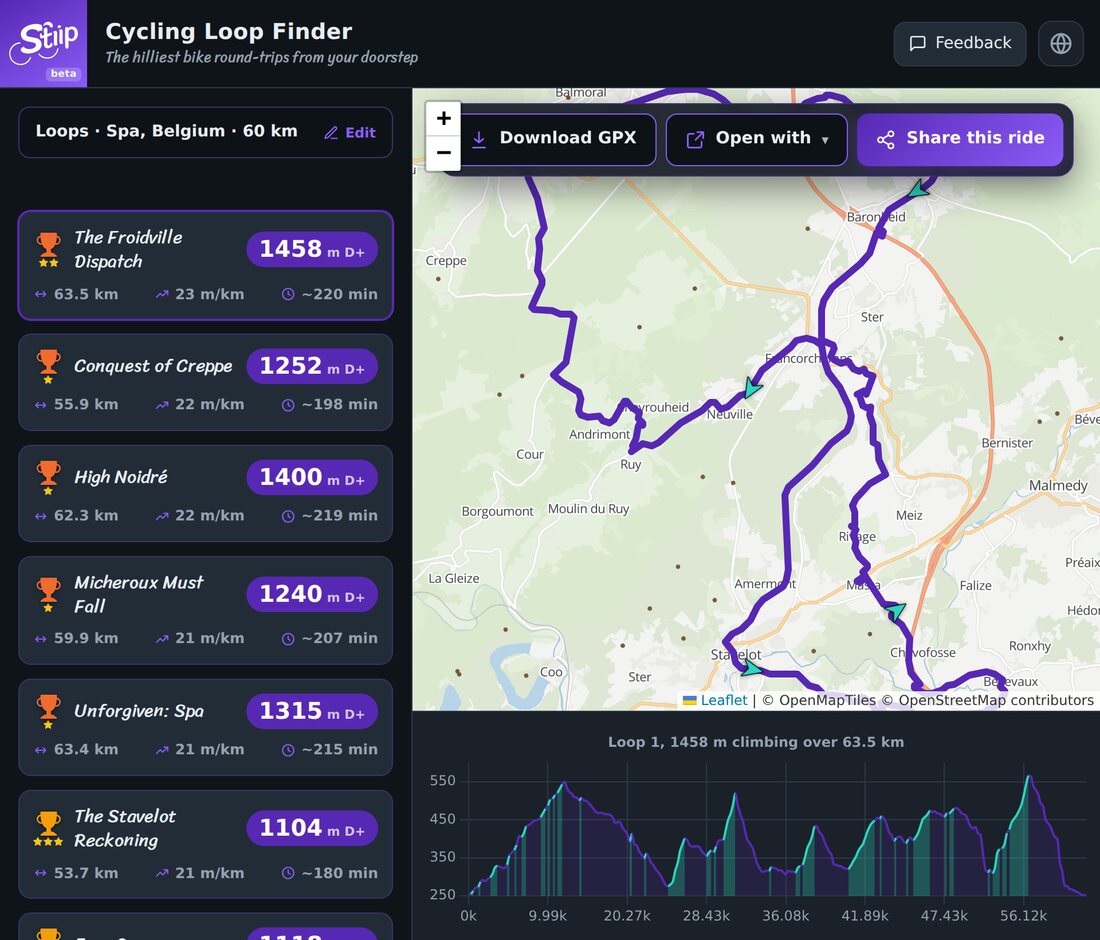
You built a route on Stiip. Now let's get it on your device so it guides you on the road. Tap Download GPX, then jump to your device below.
First, download the GPX
On any Stiip route, tap Download GPX. That saves a small .gpx file. That one file works with almost every bike computer and map app.
Garmin (Edge)
The easy way, no cable:
- Open the Garmin Connect app on your phone.
- Go to Training & Planning → Courses → Import.
- Pick your Stiip GPX.
- Send it to your device. On the Edge it shows under Courses / Navigation.
Prefer a cable? Plug the Edge into a computer and drop the GPX into the Garmin/NewFiles folder. Done.
Wahoo (ELEMNT, BOLT, ROAM)
- Open the Wahoo app.
- Go to Routes.
- Add a route and pick the GPX (from your files, email, or Dropbox).
- It syncs to your head unit. Start it from Routes on the device.
OsmAnd (on your phone)
A great free option if you navigate on your phone:
- Download the GPX from Stiip.
- Open it with OsmAnd (tap the file → Open with → OsmAnd). Or in OsmAnd: My Places → Tracks → Import.
- Tap the track, then Show on map to see it, or Follow track to get turn-by-turn along it.
Tip: "Follow track" turns the GPX into navigation, with the line to follow and directions as you ride.
Also works with
Strava, Komoot and RideWithGPS all import the same GPX. And the Open with button on Stiip gives you quick preview links.
Download once, ride it anywhere.